Hand over a bike

Partner app
Hand over a bike at pickup
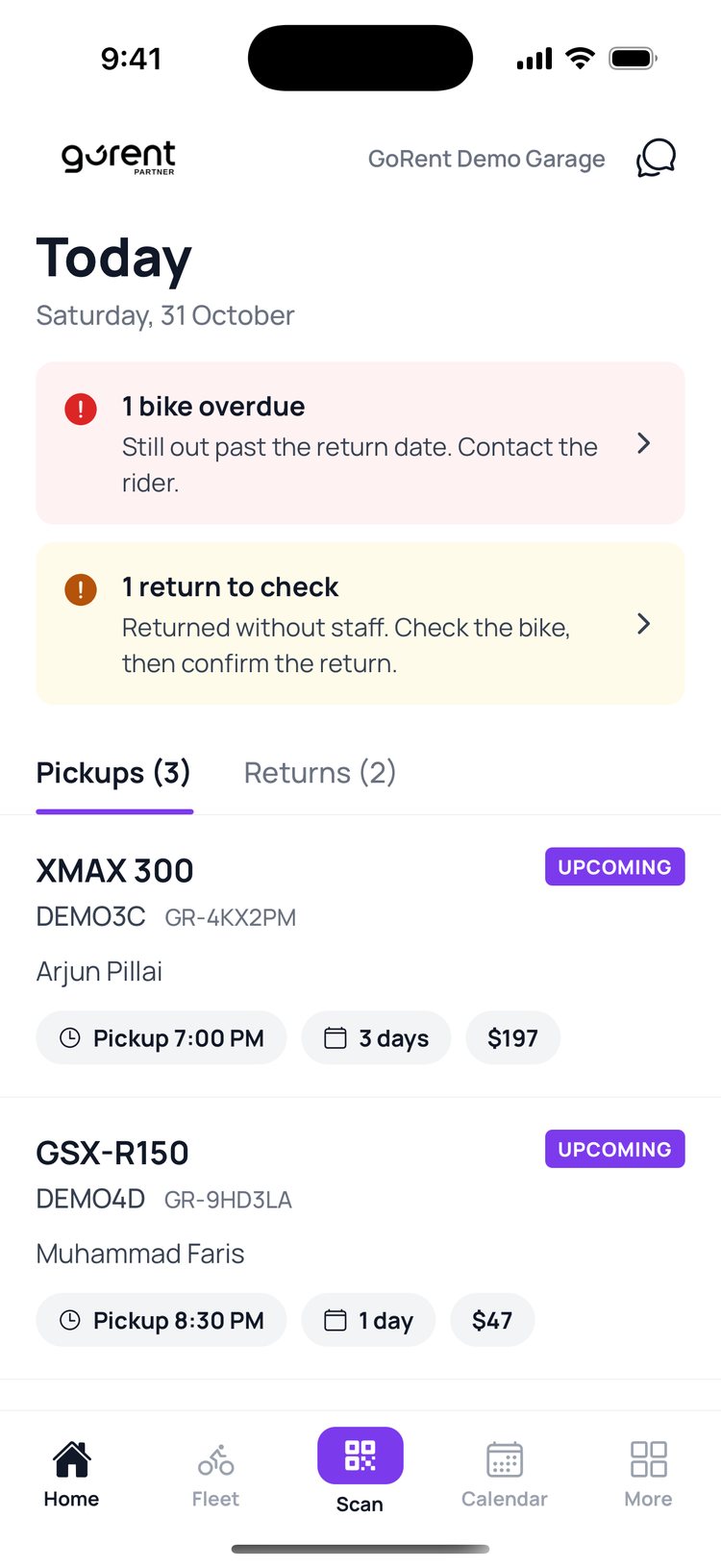
When a rider arrives for their bike, scan the QR code in their GoRent app. You’ll see who they are and which bike to give them before you hand over the keys.
How it works:
Before the QR code appears in their app, the rider signs the rental agreement and takes a quick selfie to confirm it’s them. Scanning the code checks the booking, and confirming starts the rental.
1. On ‘Home’, tap the rider’s booking under ‘Pickups’.
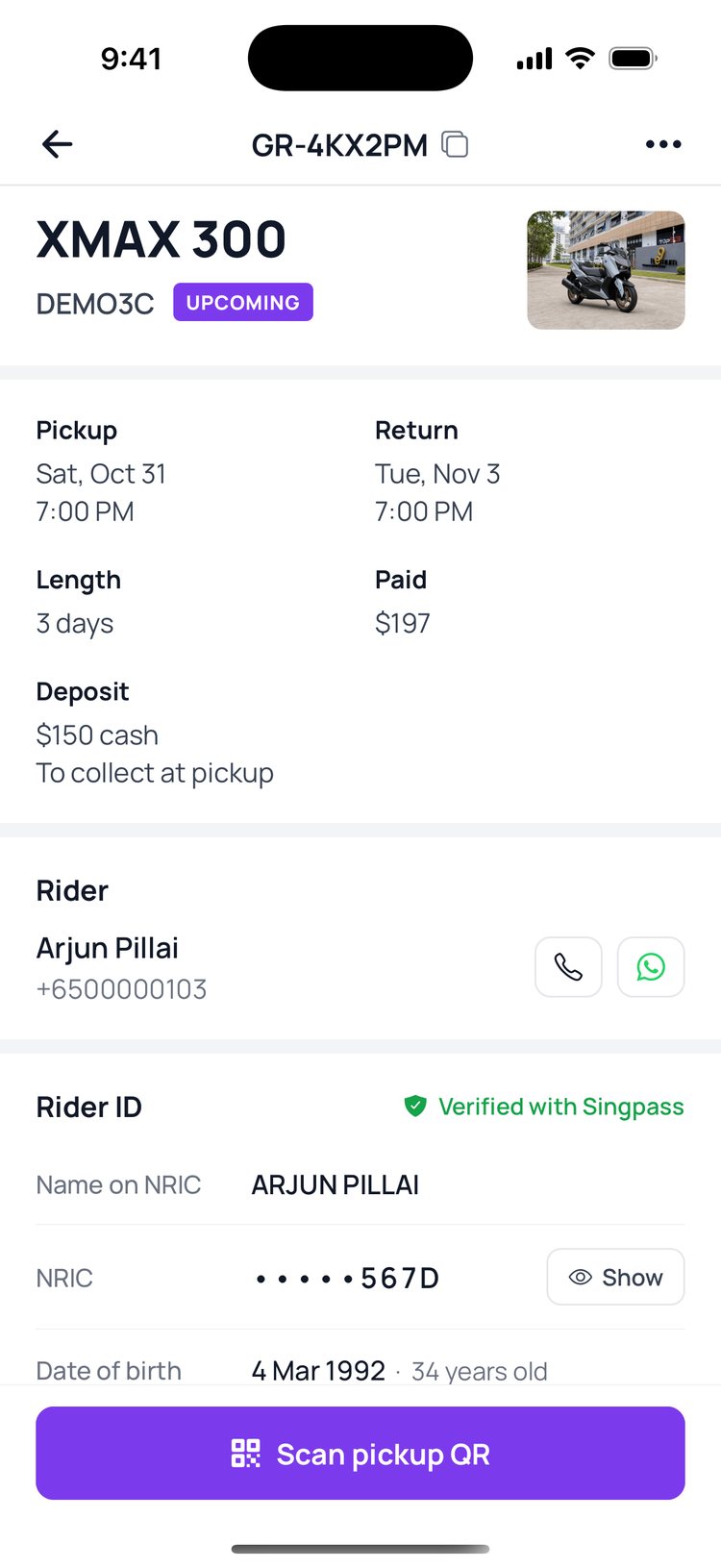
2. Check the booking, then tap ‘Scan pickup QR’.
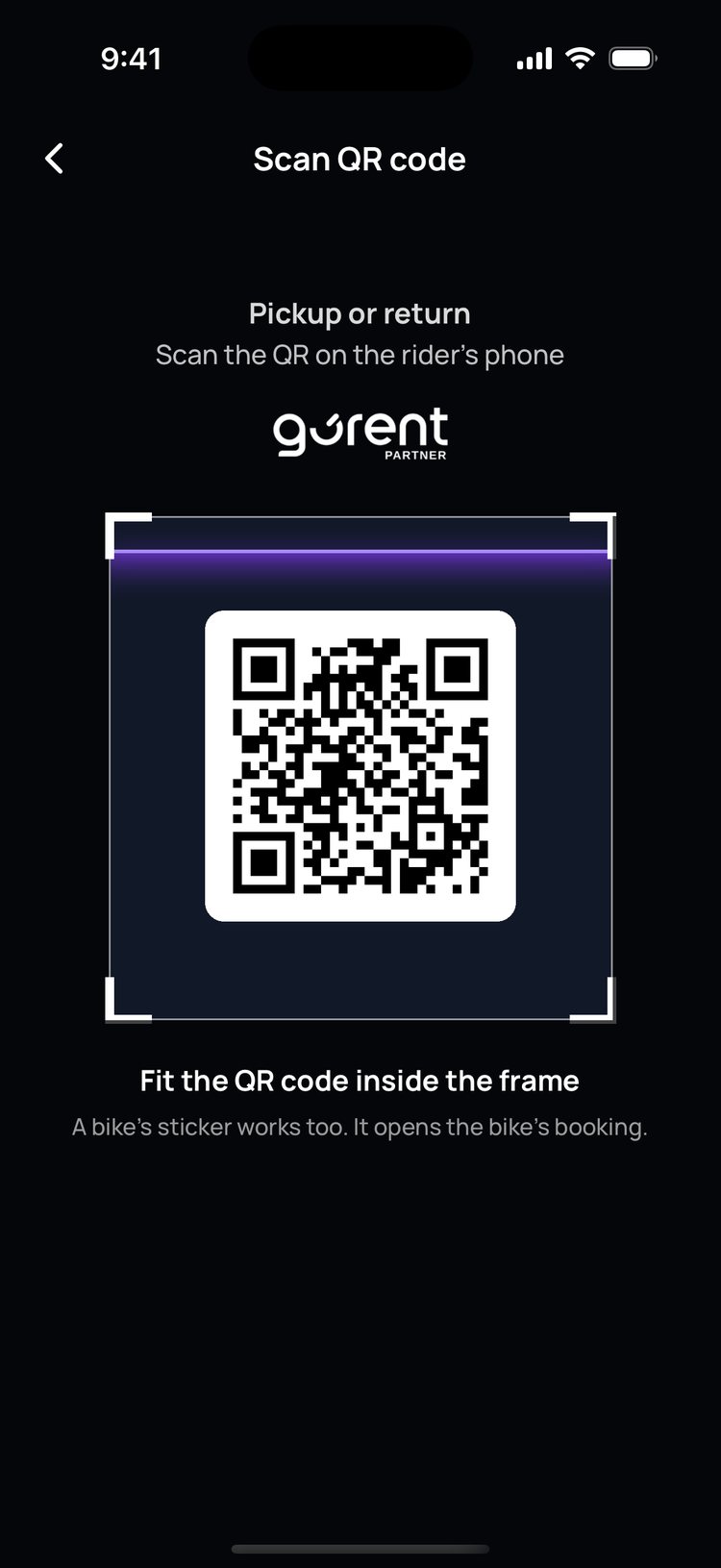
3. Point your camera at the QR code on the rider’s phone.
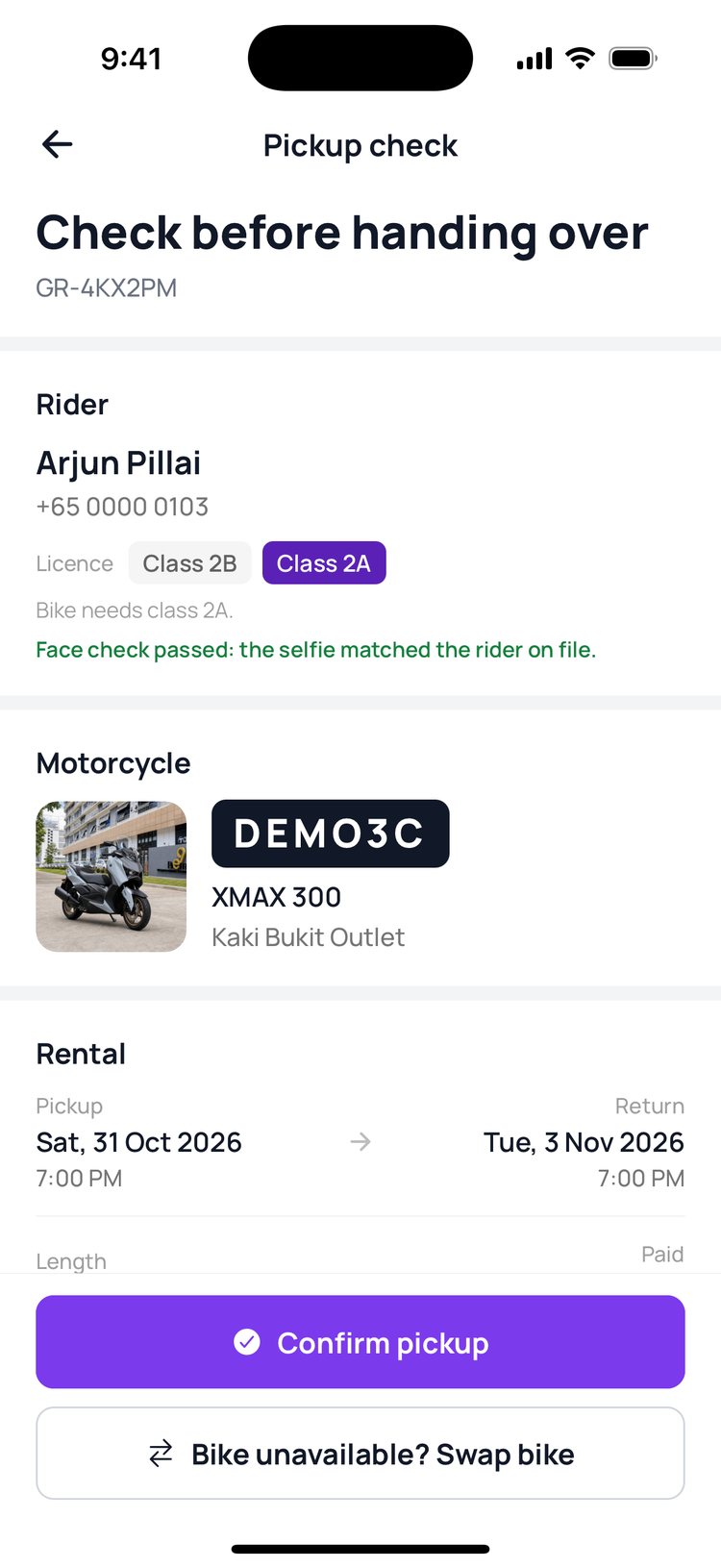
4. Check the rider, their licence and the bike, then tap ‘Confirm pickup’.
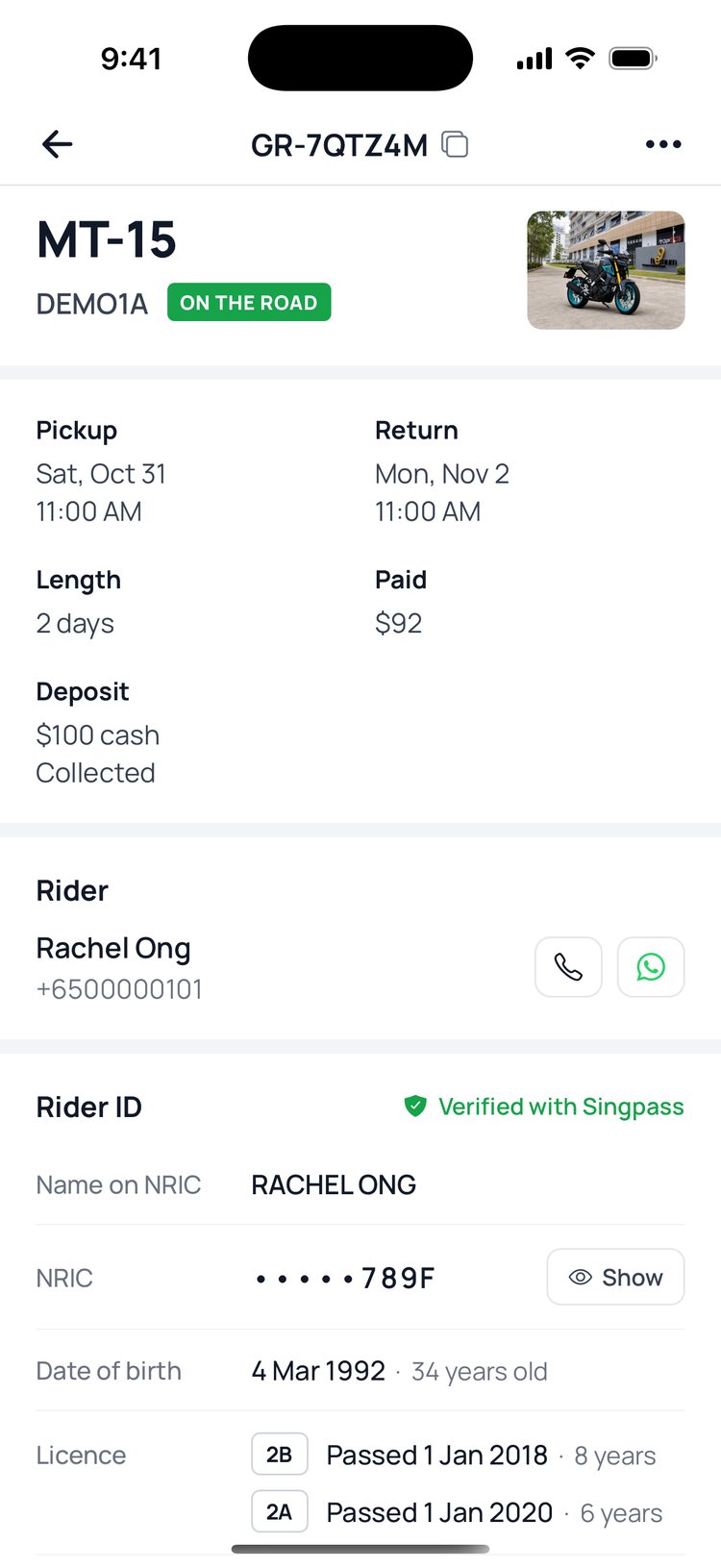
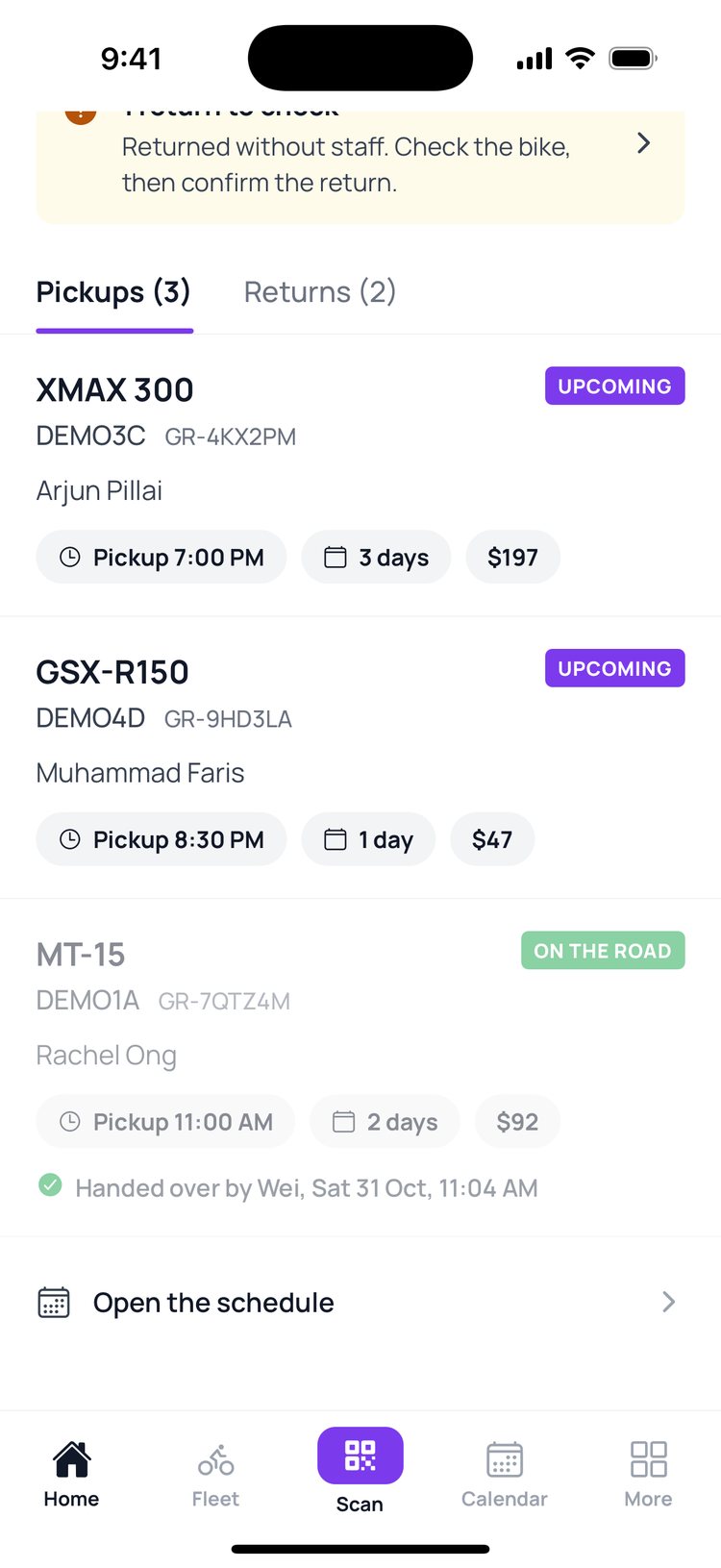
5. Done! The booking now shows ‘On the road’, and who handed it over.

If your shop takes a cash deposit, tick ‘Cash deposit collected’ on the pickup check before you confirm. It’s just below the rental details.
Still stuck? Message us on WhatsApp.
Questions
The rider says their QR code won’t show
The code appears once the rider has signed the agreement and passed the face check in their app. Ask them to finish those steps first.
What does ‘Face check passed’ mean?
The rider’s selfie at pickup matched the face saved on their GoRent account, so the person at your counter is the person who booked.
The bike they booked isn’t ready. Can I give them another one?
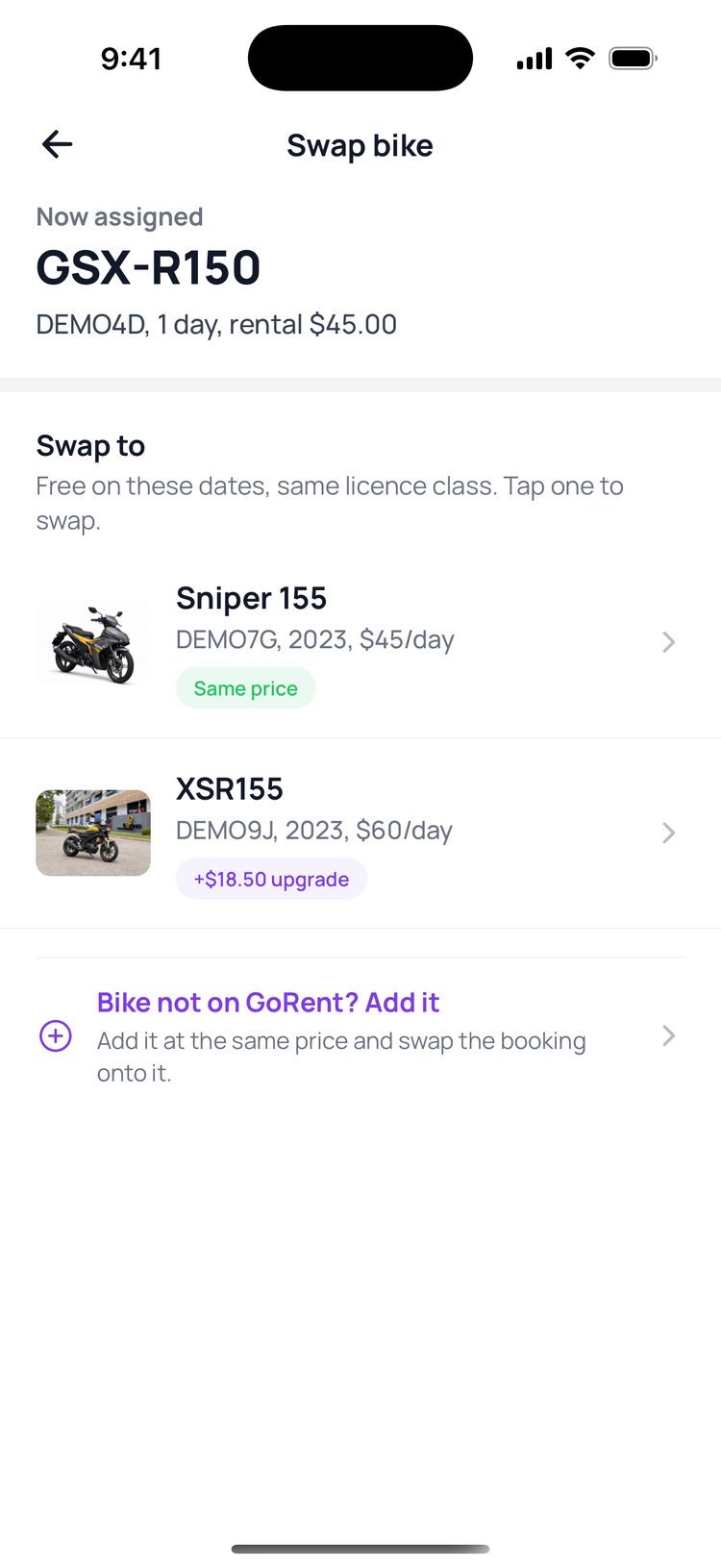
Yes. On the pickup check, tap ‘Bike unavailable? Swap bike’ and pick another bike of the same licence class.
The rider’s licence class doesn’t match the bike
Don’t hand over the bike. The pickup check shows the class the bike needs next to the rider’s classes. Swap to a bike they’re licensed for, or message us on WhatsApp.