Your earnings

Partner app
See what your shop earns
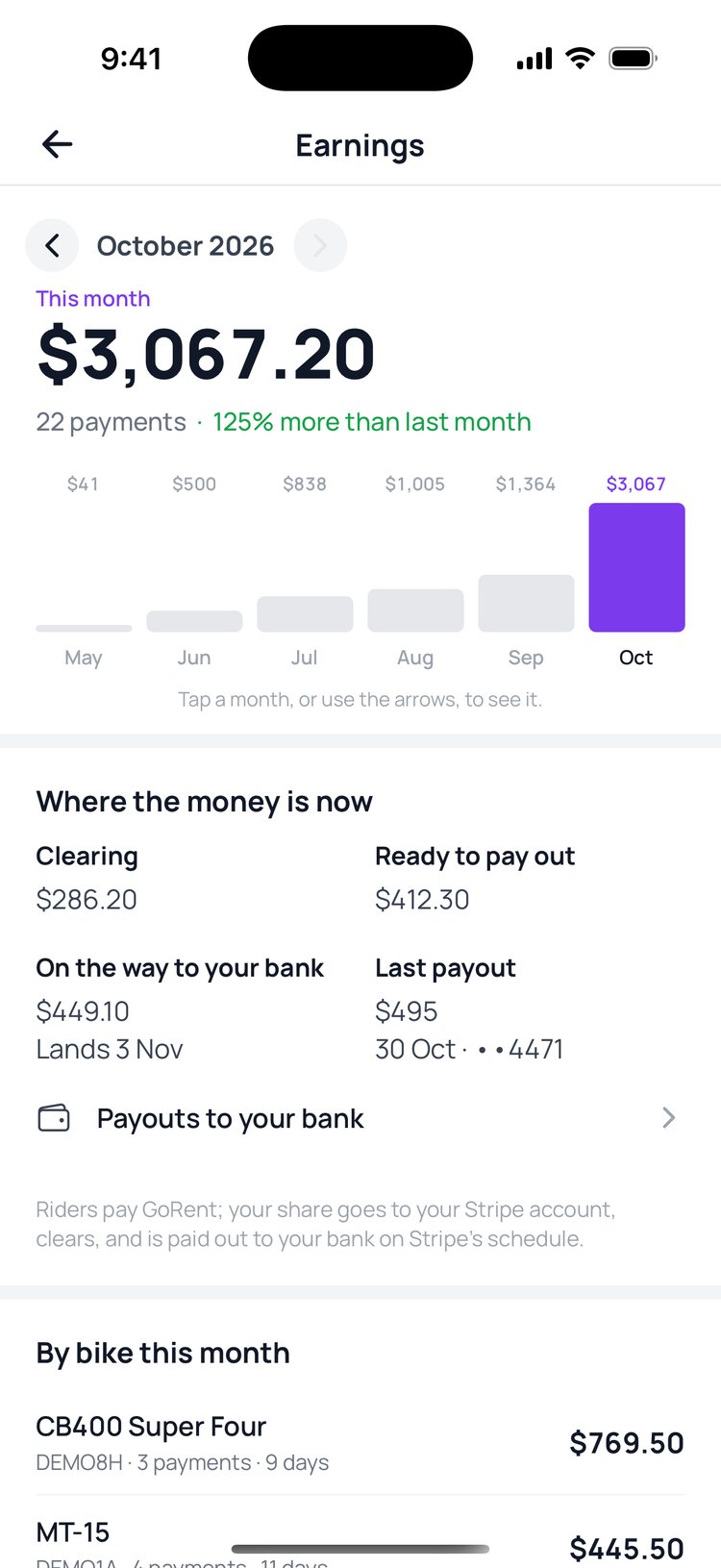
Earnings shows what your shop has made this month, how it compares with last month, which bikes earn the most and every payment behind it.
How it works:
Every amount is your share: what the rider paid, less GoRent’s booking fee and commission. Riders pay GoRent, your share goes to your Stripe account, and Stripe pays it out to your bank.
1. Tap ‘More’, then ‘Earnings’.
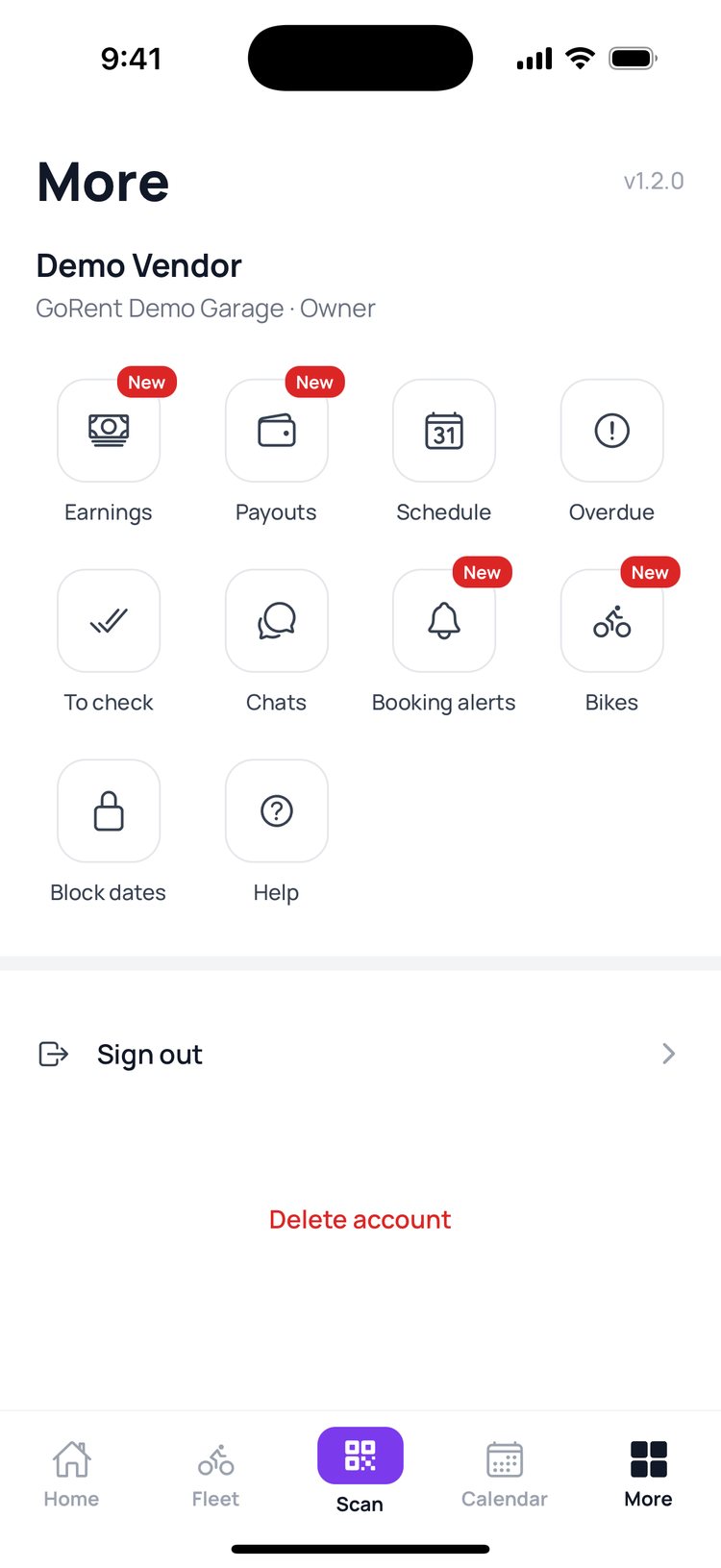
2. See this month’s total, and how it compares with last month.
3. Tap a month’s bar, or use the arrows, to see that month.
4. ‘Where the money is now’ shows what’s clearing, what’s ready and what’s on the way to your bank.
5. ‘By bike’ shows which bikes earned the most this month.
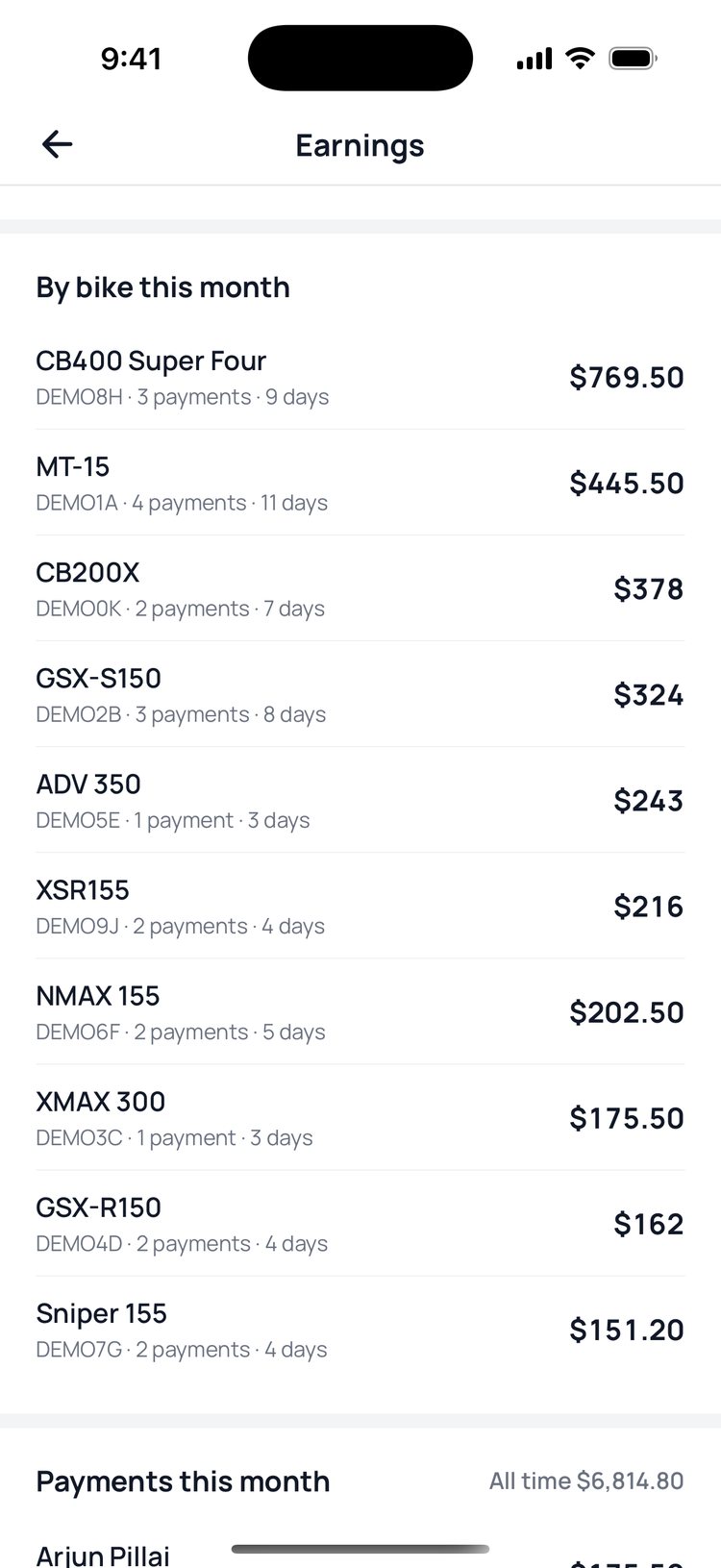
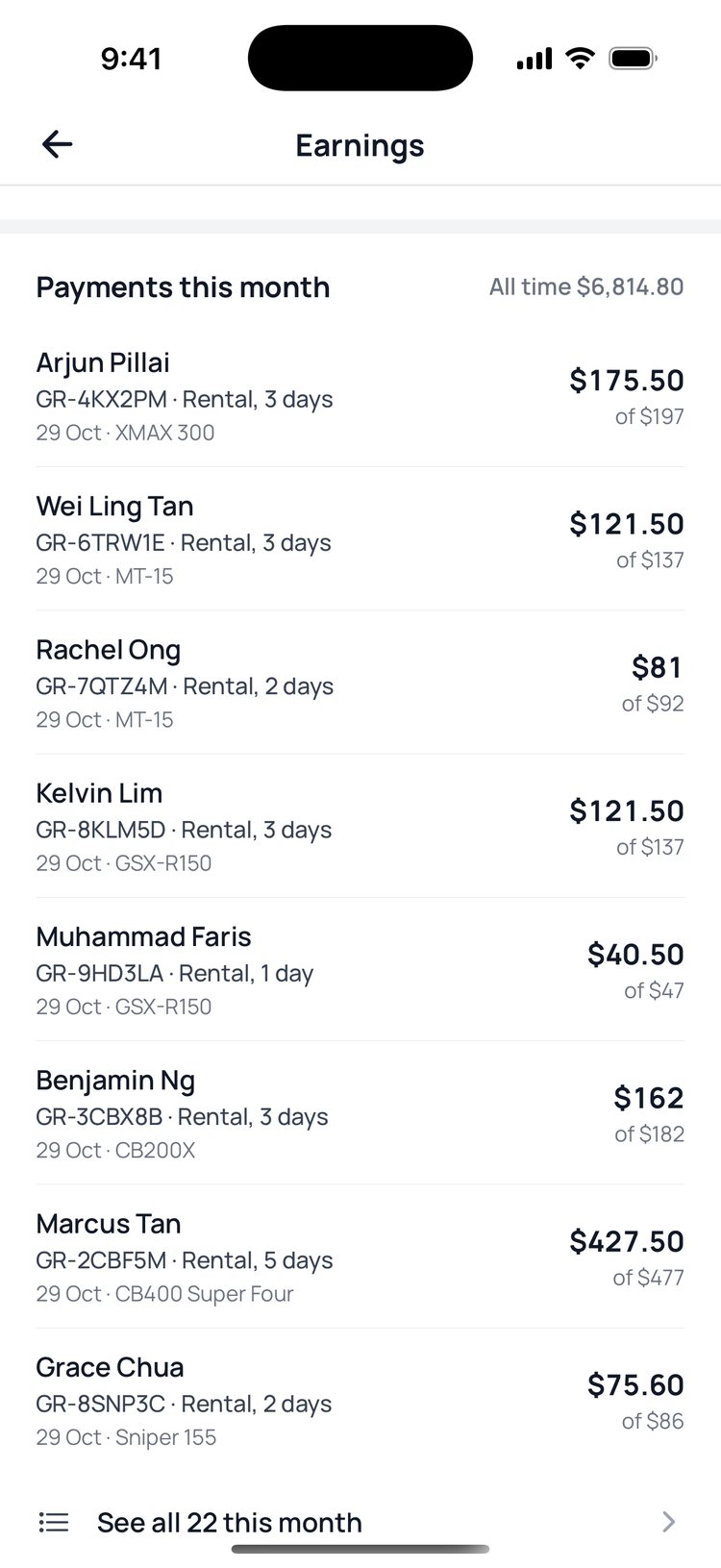
6. Each payment shows what you got from it, and what the rider paid in total.

Need the figures in a spreadsheet? Exports are in the vendor portal.
Still stuck? Message us on WhatsApp.
Questions
Is this before or after GoRent’s fees?
After. The big number on each payment is your share. ‘of $197’ underneath is what the rider paid in total.
Why can’t I see Earnings?
Only the shop owner, and managers the owner allows to see earnings, can open it.
It says payouts aren’t set up yet
Your shop needs a Stripe account to be paid. Set it up in the vendor portal, or message us on WhatsApp for help.
Where are my statements?
Each payout has its own statement. Open ‘Payouts to your bank’, tap a payout, then ‘Open the statement’.