Block dates

Partner app
Block dates for a bike
Taking a bike for servicing, a walk-in rental or your own use? Block those days so riders can’t book it.
How it works:
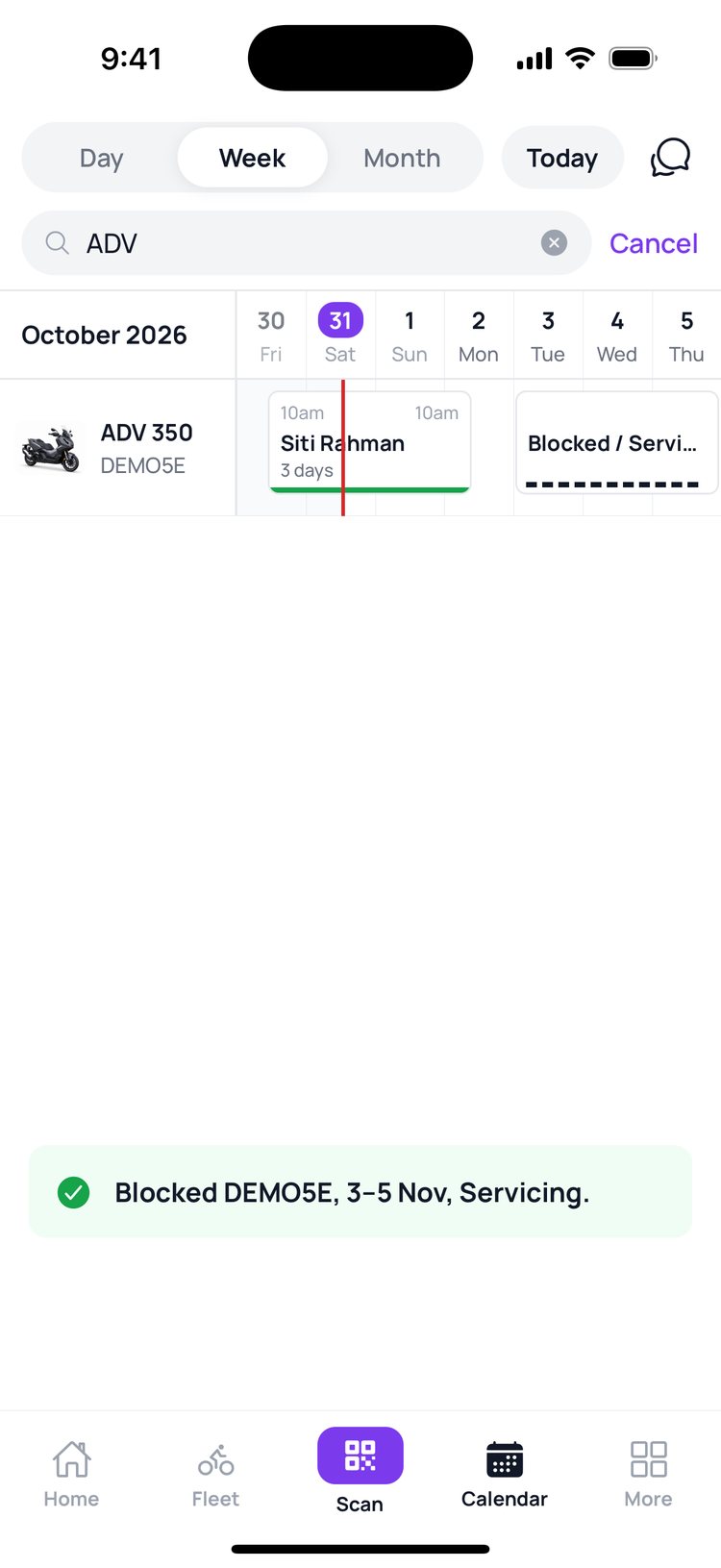
Blocks are made on the Calendar. Find the bike, tap the first day, then the last day on its row. Riders can’t book a blocked day, and GoRent won’t let you block days a rider has already booked.
1. Tap ‘Calendar’, then ‘Search’.
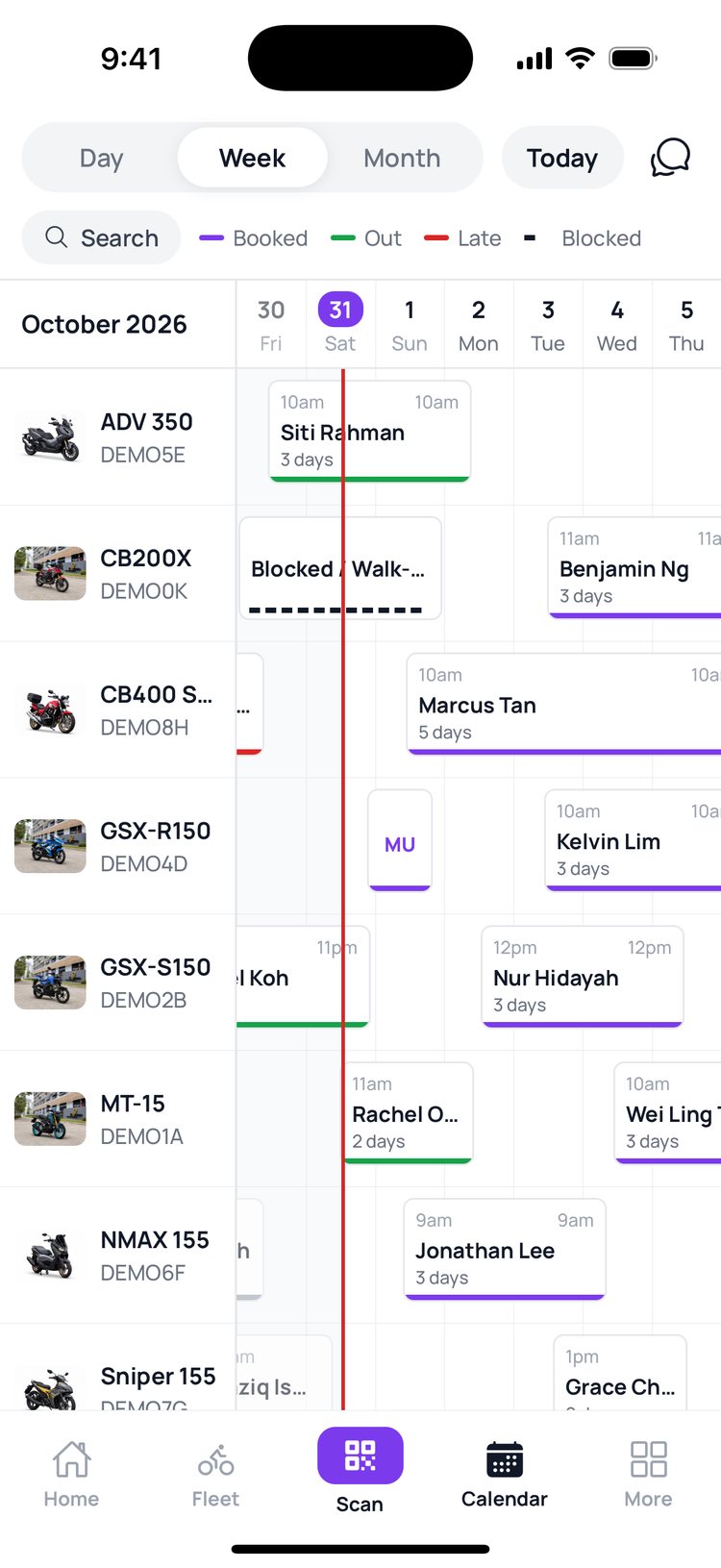
2. Type the bike’s plate or model.
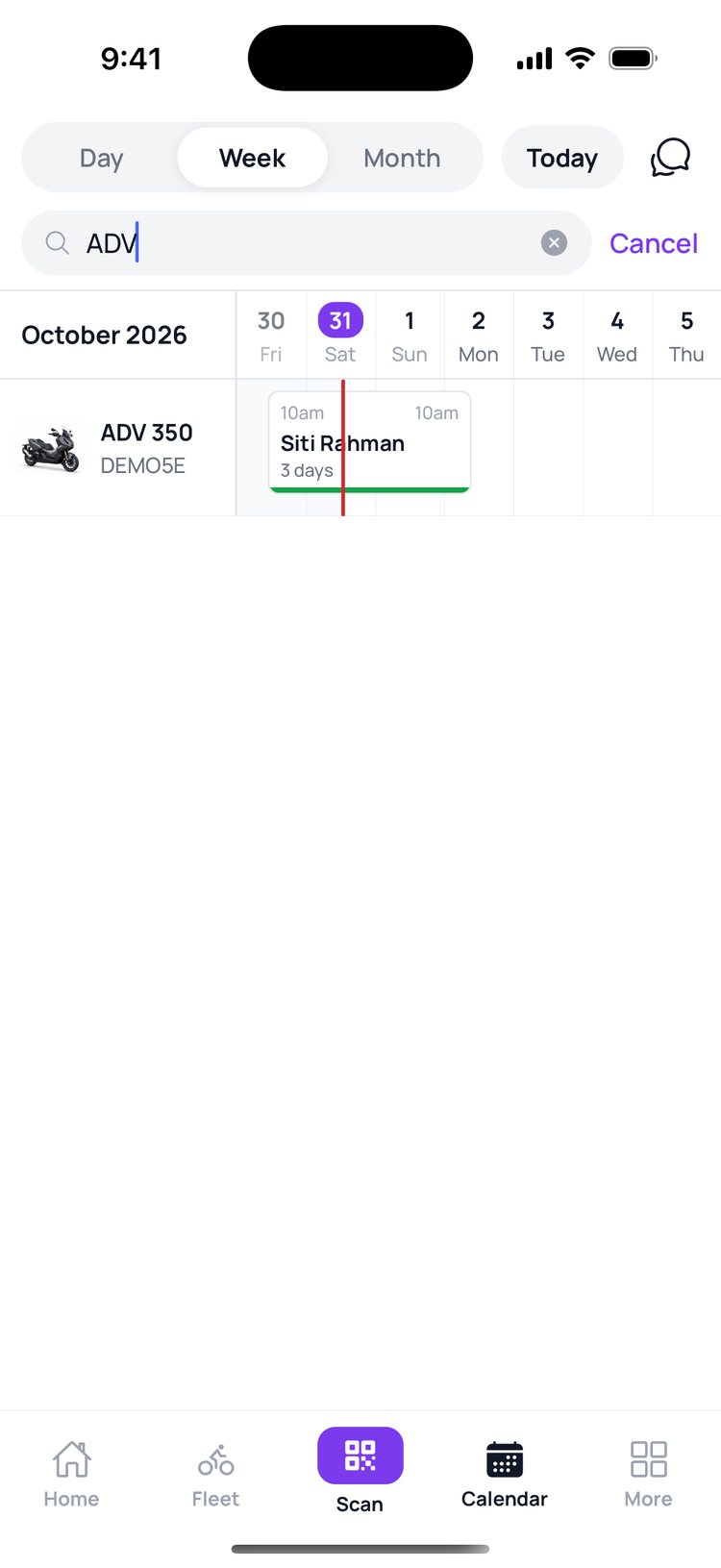
3. Tap the first day you want to block, on the bike’s row.
4. Tap the last day on the same row.
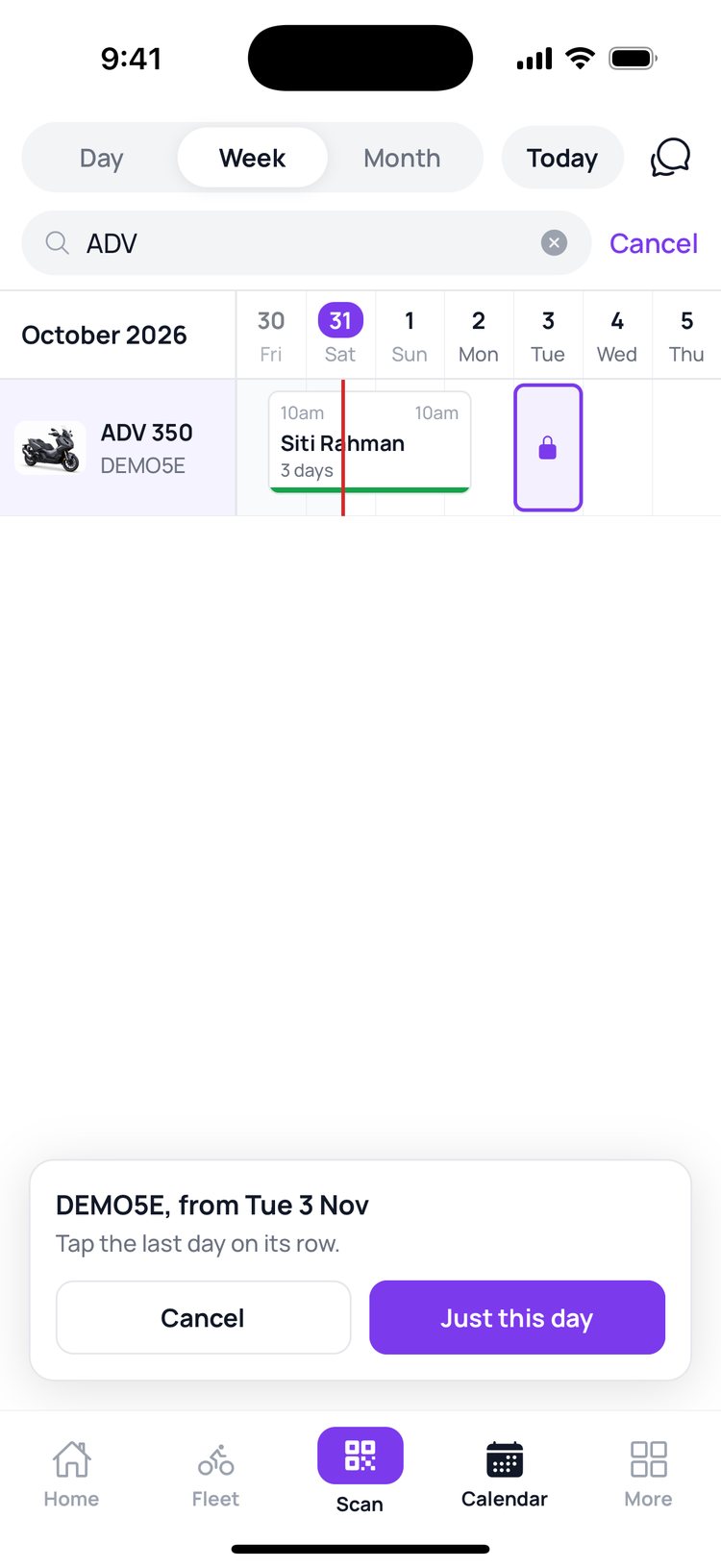
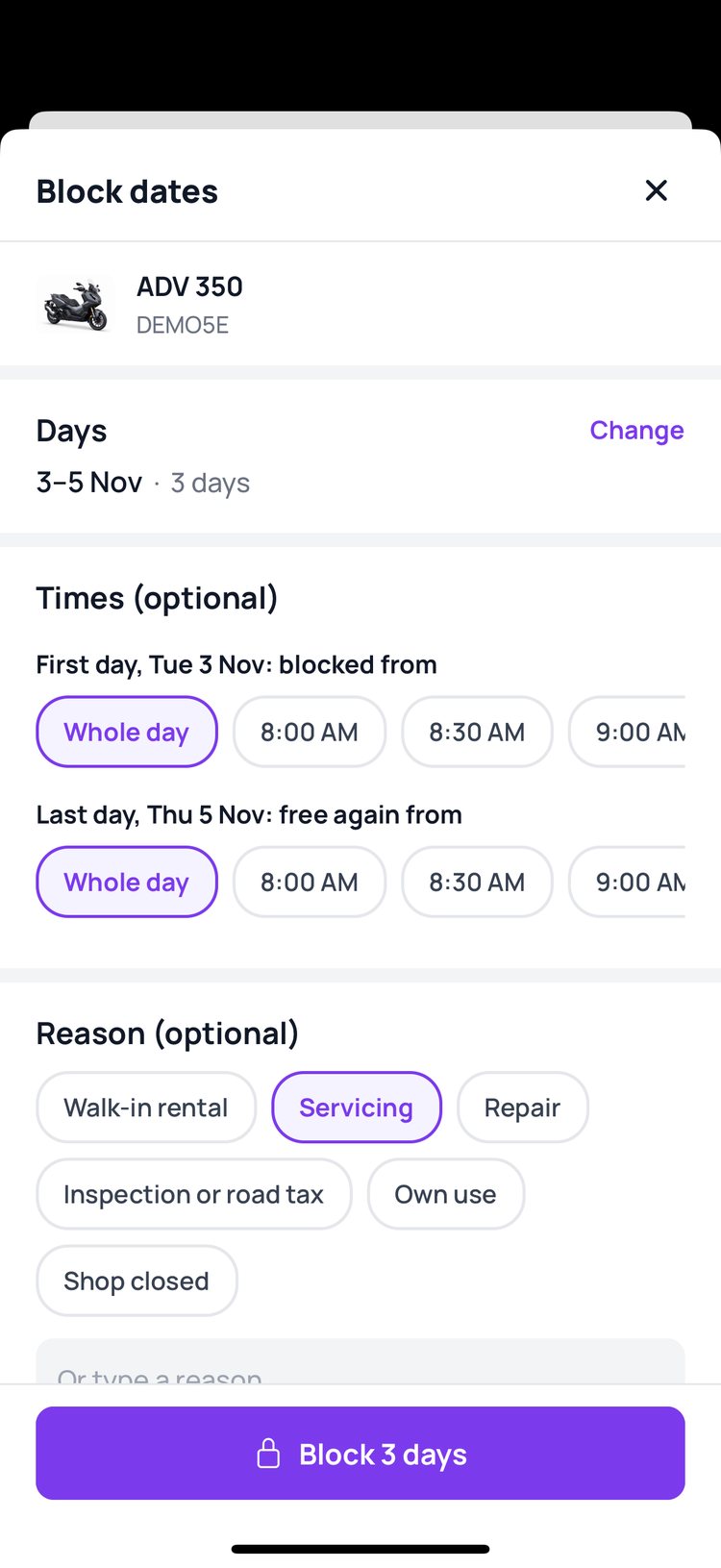
5. Pick a reason if you like, then tap ‘Block’.
6. Done! The days show as ‘Blocked’ on the calendar.

Blocking just one day? After you tap the first day, tap ‘Just this day’.
Still stuck? Message us on WhatsApp.
Questions
How do I unblock a bike?
Tap the block on the calendar, then tap ‘Unblock’.
Can I block only part of a day?
Yes. Before you tap ‘Block’, choose ‘Blocked from’ for the first day and ‘Free again from’ for the last day.
What if a rider has already booked those days?
The calendar won’t let you block over a booking, and tells you which booking is in the way. Pick other days, or swap that booking to another bike first.
Do riders see why the bike is blocked?
No. Riders just can’t book those days. The reason is only for you and your team.