Manage your bikes

Partner app
Add, edit or remove a bike
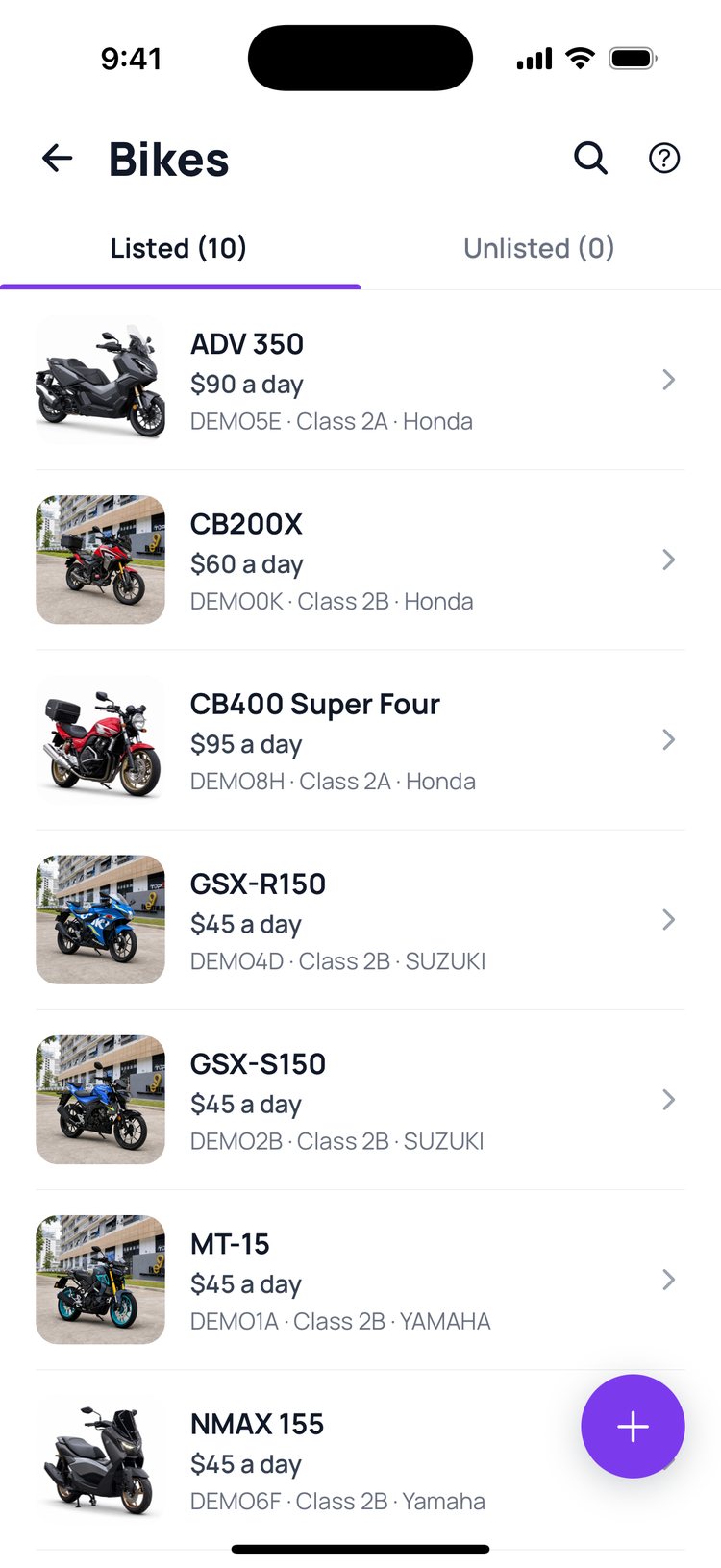
Add new bikes to GoRent, change their photos and prices, or remove the ones you no longer rent out, right from the app.
How it works:
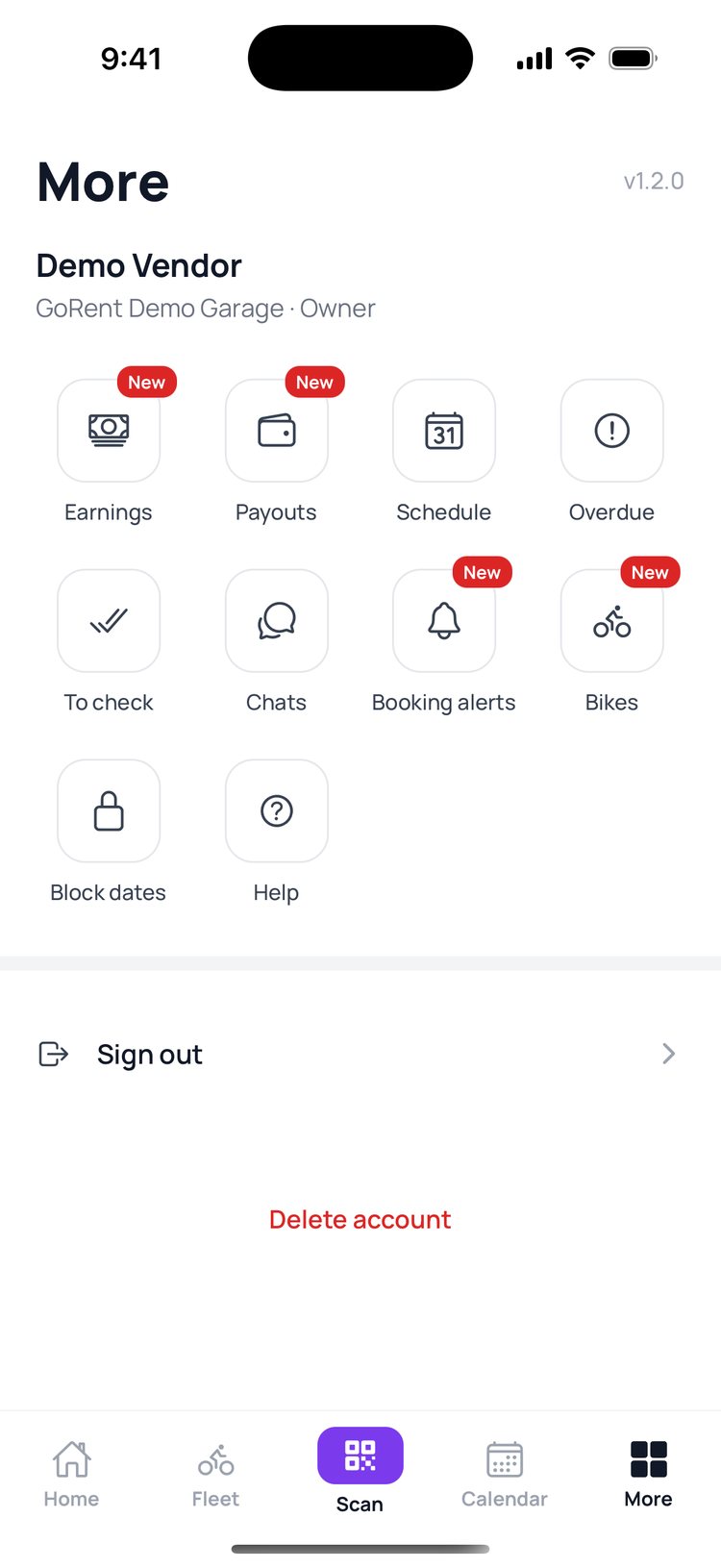
Bikes live under More, then Bikes. Every change you make here also shows in the vendor portal, and in its Edit history, so your team can see who changed what.
Add a bike
1. Tap ‘More’, then ‘Bikes’.
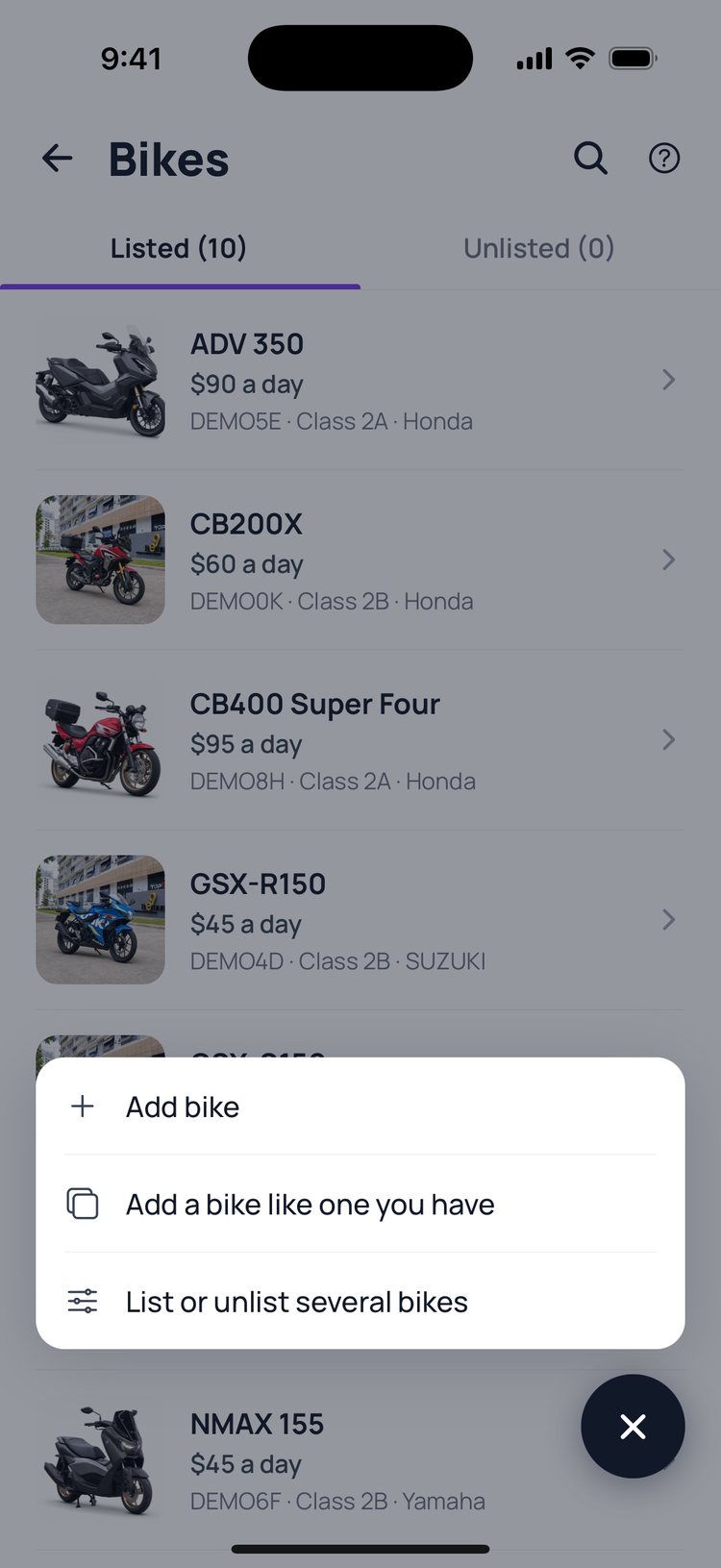
2. Tap the + button, then ‘Add bike’.
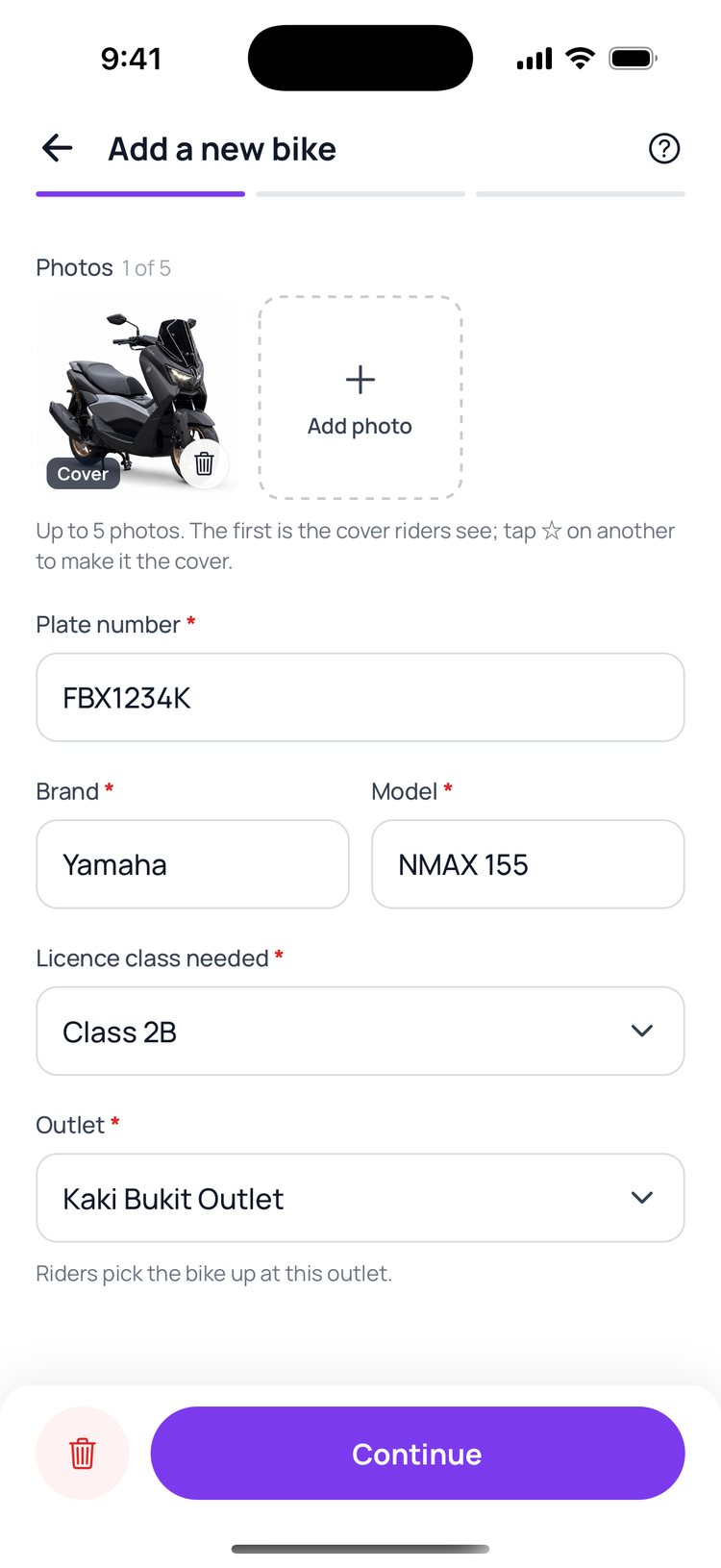
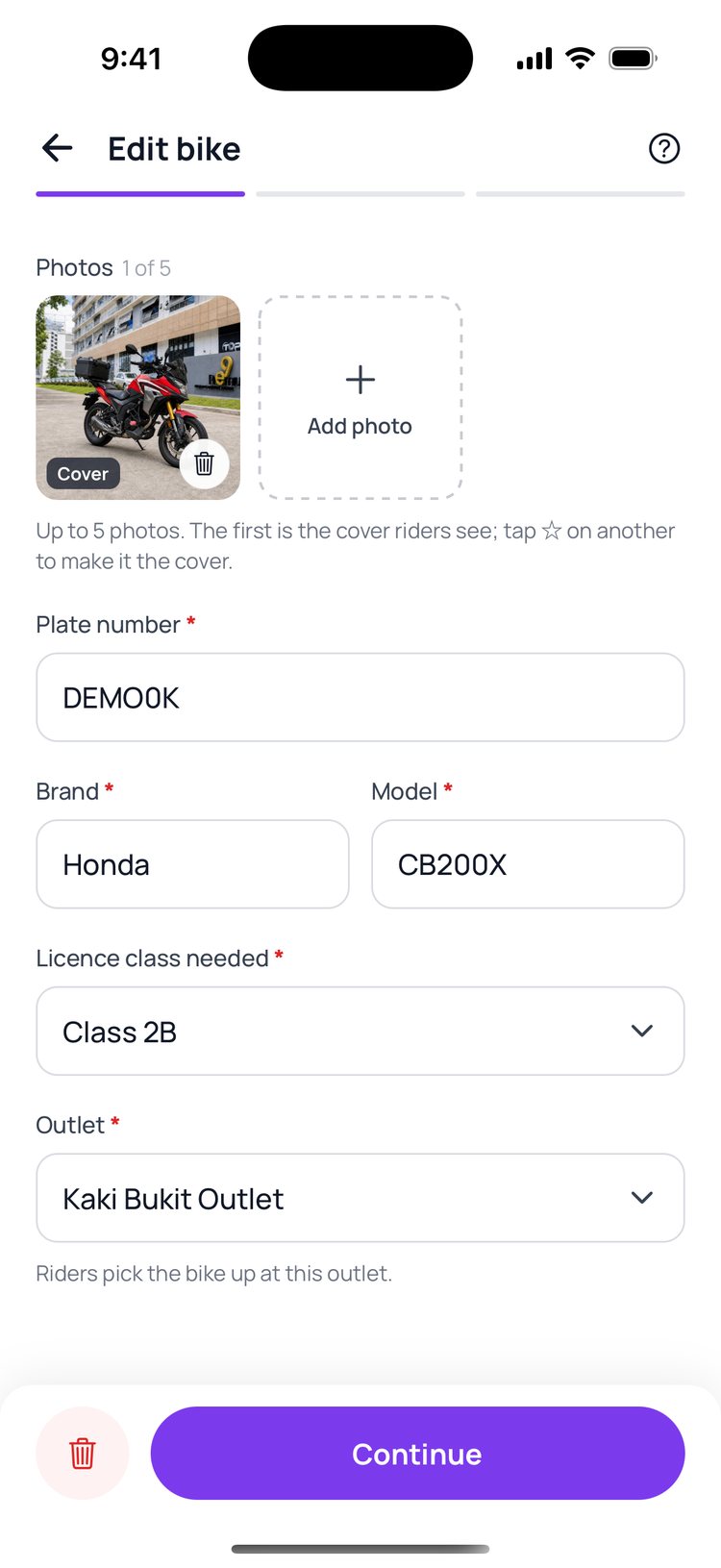
3. Add photos, the plate, brand, model and licence class, then tap ‘Continue’.
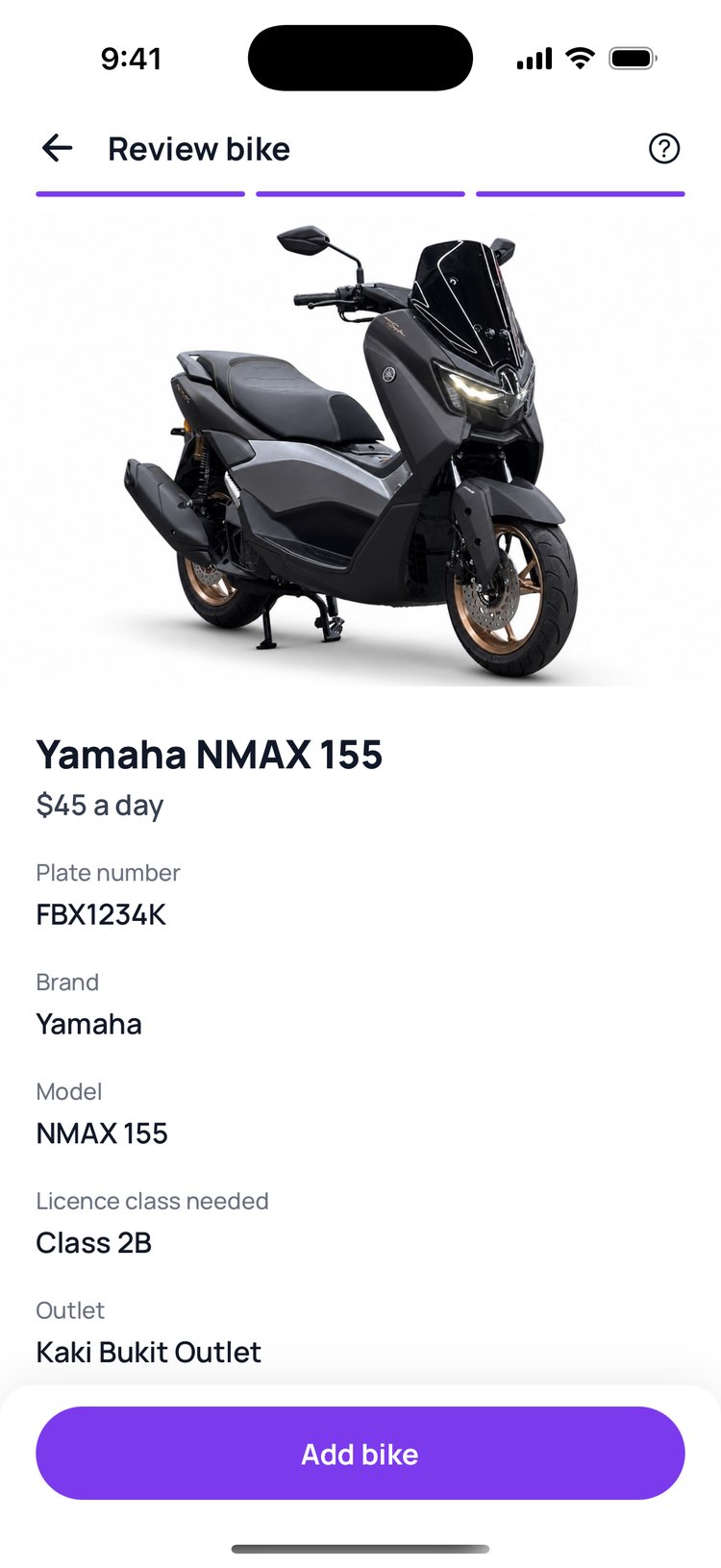
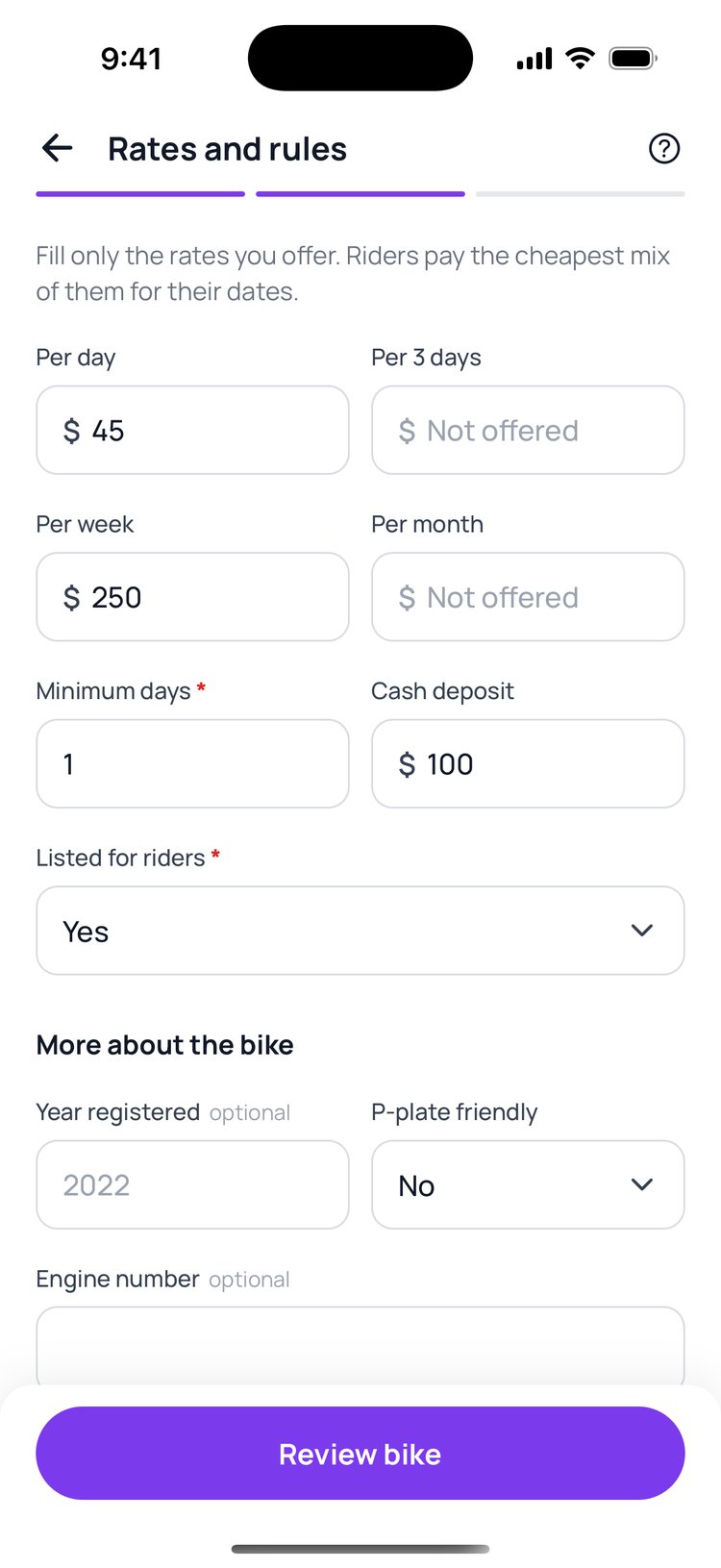
4. Fill in only the rates you offer, then tap ‘Review bike’.
5. Check everything, then tap ‘Add bike’.

Edit a bike
1. In ‘Bikes’, tap the bike you want to change.
2. Change what you need. Tap ‘Continue’, ‘Review changes’, then ‘Save changes’.
Remove a bike
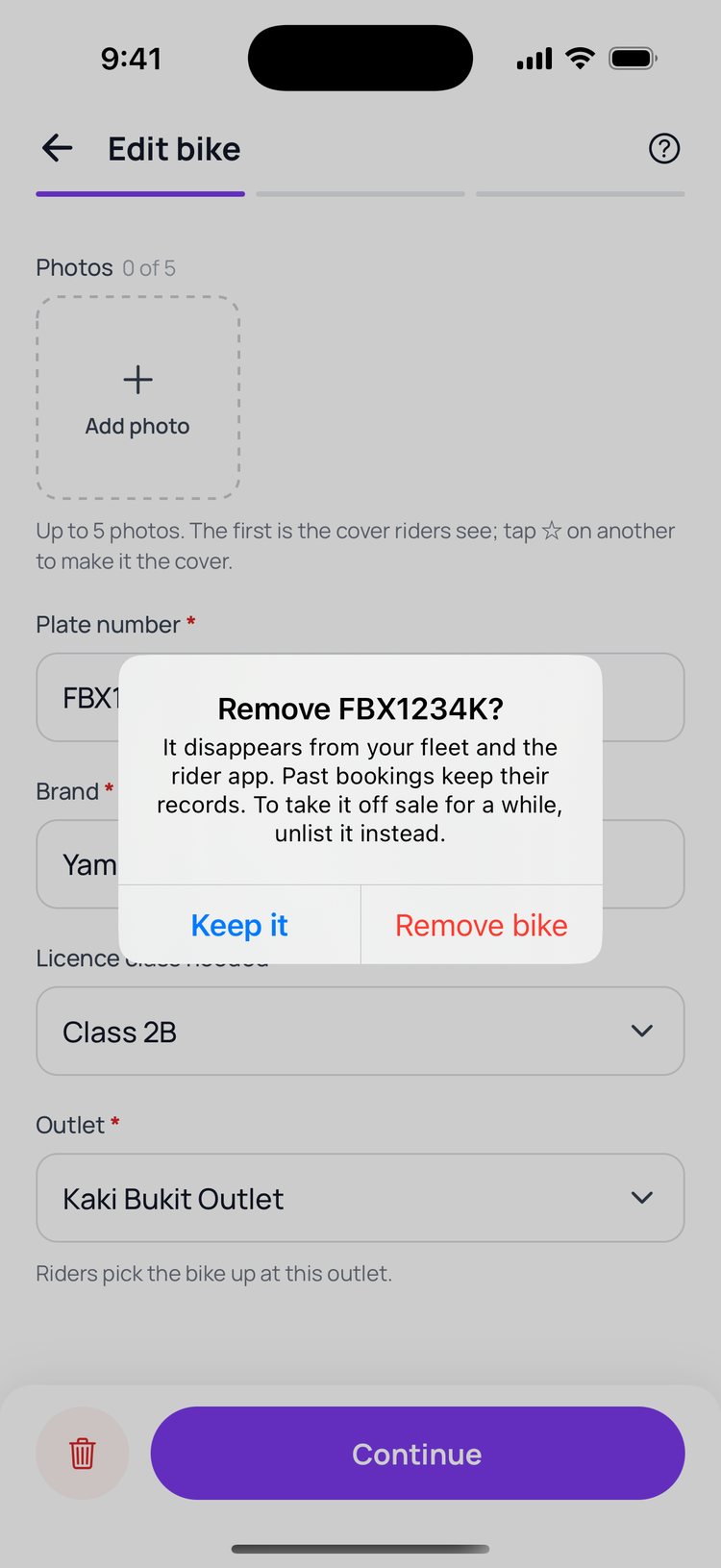
1. Open the bike and tap the bin.
2. Tap ‘Remove bike’ to confirm.
Want to stop renting a bike for a while without removing it? Open it and set ‘Listed for riders’ to No, or tap + and ‘List or unlist several bikes’.
Still stuck? Message us on WhatsApp.
Questions
Why can’t I remove a bike?
A bike with a booking still to come can’t be removed. Swap that booking to another bike first, or unlist the bike instead.
Who can add or change bikes?
The shop owner, and staff the owner allows to manage bikes.
Do my changes show in the vendor portal?
Yes, straight away. Each change also appears in the vendor portal’s Edit history, with who made it and that it came from the app.
How many photos can I add?
Up to 5. The first one is the cover riders see in search. Tap the star on another photo to make it the cover.